Sariel
Sariel is a multiplatform task management application
 _____            _      _
/  ___|          (_)    | |
\ `--.  __ _ _ __ _  ___| |
 `--. \/ _` | '__| |/ _ \ |
/\__/ / (_| | |  | |  __/ |
\____/ \__,_|_|  |_|\___|_|
User Guide
Content list
Quick Start
- Ensure that you have java
11or above installed on your computer - Download the latest sariel.jar from here
- Copy the file to the folder you want to use for the home folder
- Double-click the file to start the app. The GUI similar to this should appear in
a few seconds. - Refer to the features for more details on what can be done.
The UI
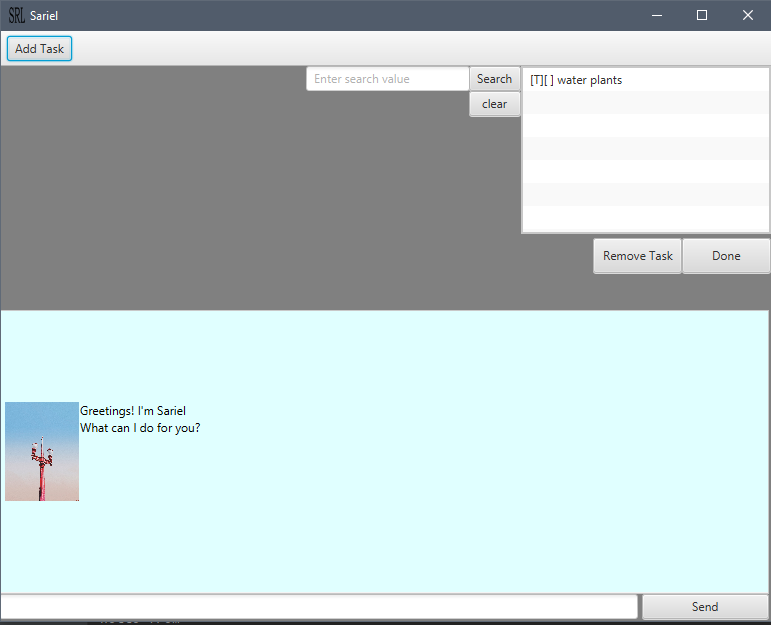
Features
Adding tasks
Able to add tasks to program.
Addition can be done through the command input field.
Tasks that can be added:
Events
event - Keyword to add an event to do.
event {taskname} /at {YYYY-MM-DD}
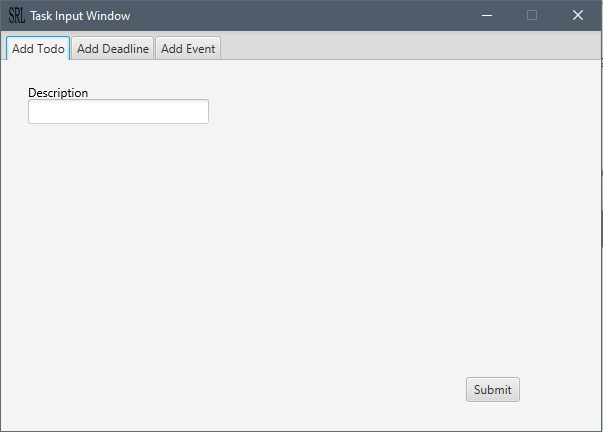
Adding through gui
The tasks can be added through the task input window that will
appear after clicking on the add task button.
Search
Ability to lookup tasks.
Tasks can be lookup by part of their name through the command
find or the search field.
The results of entry into the search field will be displayed on the
listview section above the remove task button.
List
Displays an overview of all the tasks that have been added to
Sariel. By default, it is already displayed in the list view
above the remove task button.
Removing Tasks
Removal can be done via the command field or through the remove
tasks button. To remove a task using the remove task
button, the user has to select the task(s) to remove and
click on the remove task button.
[Marking Tasks]
Tasks can be marked as done through the done command or
through the list view, selecting the task to be done and marking
it as done.
Usage
todo - Add a todo task
Describe the action and its outcome.
Example of usage:
todo Sample description
Outcome expected:
A todo task has been added.
Roger! I have added this task.
[T][] Sample description
Now you have 4 tasks in the list
deadline - Add a deadline task
Adds a deadline task. Input date must be of format
YYYY-MM-DD
Example of usage:
deadline description /by 2020-05-20
event - Add a event task
Adds an event task. Input date must be of format
YYYY-MM-DD
Example of usage:
event description /at 2020-05-20
list - Display the tasks added
Displays all the tasks added. If no tasks has been added,
nothing will be displayed.
Example of usage:
list
find - Search for a particular task by description
Displays all the tasks that have a description that contains
the input pattern.
Example of usage:
with the state of tasks:
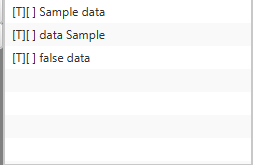
Input:
find sample
Sample output:
1[T][]Sample data
2[T][]data Sample
delete - Delete the tasks
Removes the task with the input index.
Example of usage:
with the state of tasks:
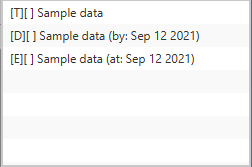
Input:
delete 2
Sample output:
The following task has been removed
[D][] Sample data (by: Sep 12 2021)
Now you have 2 tasks remaining
done - Mark the task as done
Input, done {index of task to mark}, one indexed.
done 1
Marks the first task as done.